


Page 38 - Computing Book 5
P. 38
Presenting Your Ideas                                                                Class 5


               Change an Animation Effect’s Start Option:

               By default, an effect starts playing when you click the mouse during a slide show. If you have
               multiple effects, you will need to click multiple times to start each effect individually. However, by
               changing the start option for each effect, you can have effects that automatically play at the same
               time or one after the other.

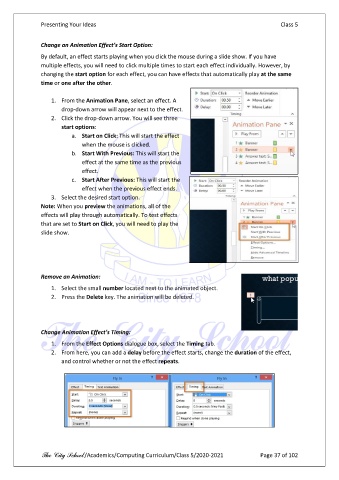
                   1.  From the Animation Pane, select an effect. A
                       drop-down arrow will appear next to the effect.
                   2.  Click the drop-down arrow. You will see three
                       start options:
                          a.  Start on Click: This will start the effect
                              when the mouse is clicked.
                          b.  Start With Previous: This will start the
                              effect at the same time as the previous
                              effect.
                          c.  Start After Previous: This will start the
                              effect when the previous effect ends.
                   3.  Select the desired start option.
               Note: When you preview the animations, all of the
               effects will play through automatically. To test effects
               that are set to Start on Click, you will need to play the
               slide show.


               Remove an Animation:

                   1.  Select the small number located next to the animated object.
                   2.  Press the Delete key. The animation will be deleted.


               Change Animation Effect’s Timing:

                   1.  From the Effect Options dialogue box, select the Timing tab.
                   2.  From here, you can add a delay before the effect starts, change the duration of the effect,
                       and control whether or not the effect repeats.


               The City School /Academics/Computing Curriculum/Class 5/2020-2021            Page 37 of 102

