


Page 42 - Computing Book 5
P. 42
Presenting Your Ideas                                                                Class 5


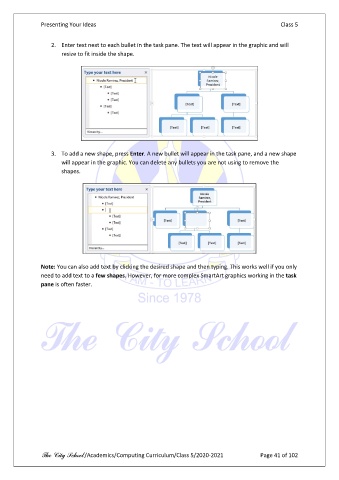
                   2.  Enter text next to each bullet in the task pane. The text will appear in the graphic and will
                       resize to fit inside the shape.


                   3.  To add a new shape, press Enter. A new bullet will appear in the task pane, and a new shape
                       will appear in the graphic. You can delete any bullets you are not using to remove the
                       shapes.


               Note: You can also add text by clicking the desired shape and then typing. This works well if you only
               need to add text to a few shapes. However, for more complex SmartArt graphics working in the task
               pane is often faster.


               The City School /Academics/Computing Curriculum/Class 5/2020-2021            Page 41 of 102

