


Page 40 - Computing Book 5
P. 40
Presenting Your Ideas                                                                Class 5


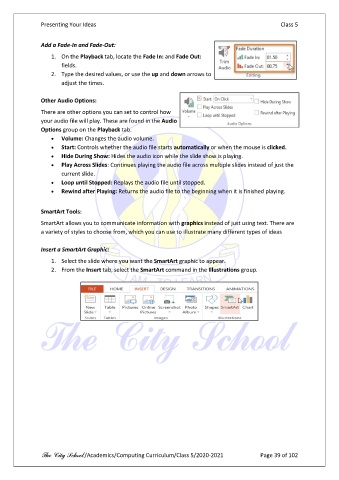
               Add a Fade-In and Fade-Out:

                   1.  On the Playback tab, locate the Fade In: and Fade Out:
                       fields.
                   2.  Type the desired values, or use the up and down arrows to
                       adjust the times.

               Other Audio Options:
               There are other options you can set to control how
               your audio file will play. These are found in the Audio
               Options group on the Playback tab.
                   •  Volume: Changes the audio volume.
                   •  Start: Controls whether the audio file starts automatically or when the mouse is clicked.
                   •  Hide During Show: Hides the audio icon while the slide show is playing.
                   •  Play Across Slides: Continues playing the audio file across multiple slides instead of just the
                       current slide.
                   •  Loop until Stopped: Replays the audio file until stopped.
                   •  Rewind after Playing: Returns the audio file to the beginning when it is finished playing.


               SmartArt Tools:
               SmartArt allows you to communicate information with graphics instead of just using text. There are
               a variety of styles to choose from, which you can use to illustrate many different types of ideas

               Insert a SmartArt Graphic:

                   1.  Select the slide where you want the SmartArt graphic to appear.
                   2.  From the Insert tab, select the SmartArt command in the Illustrations group.


               The City School /Academics/Computing Curriculum/Class 5/2020-2021            Page 39 of 102

