


Page 75 - Computing Book 5
P. 75
Analysing Data                                                                       Class 5


               Use of IF Condition:

               The IF function can perform a logical test and return one value for a TRUE result, and another for a
               FALSE result. The IF function checks whether a condition is met and returns one value if true and
               another value if false. The IF function can be combined with logical functions like AND and OR.

               Purpose:              Test for a specific condition
               Return Value:         The values you supply for TRUE or FALSE
               Syntax: Syntax:       IF (logical_test, [value_if_true], [value_if_false])

               Arguments

               logical_test: A value or logical expression that can be evaluated as TRUE or FALSE.
               value_if_true: [optional] The value to return when logical_test evaluates to TRUE.
               value_if_false: [optional] The value to return when logical_test evaluates to FALSE.

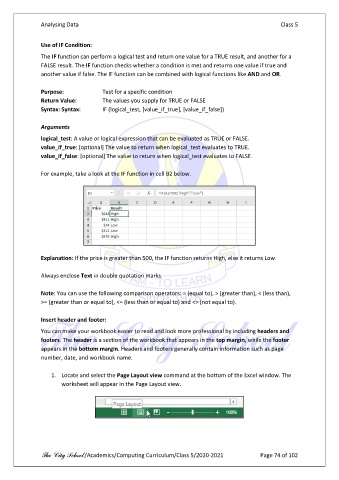
               For example, take a look at the IF function in cell B2 below.


               Explanation: If the price is greater than 500, the IF function returns High, else it returns Low.

               Always enclose Text in double quotation marks.

               Note: You can use the following comparison operators: = (equal to), > (greater than), < (less than),
               >= (greater than or equal to), <= (less than or equal to) and <> (not equal to).

               Insert header and footer:
               You can make your workbook easier to read and look more professional by including headers and
               footers. The header is a section of the workbook that appears in the top margin, while the footer
               appears in the bottom margin. Headers and footers generally contain information such as page
               number, date, and workbook name.

                   1.  Locate and select the Page Layout view command at the bottom of the Excel window. The
                       worksheet will appear in the Page Layout view.


               The City School /Academics/Computing Curriculum/Class 5/2020-2021            Page 74 of 102

