


Page 100 - Learn To Program With Scratch
P. 100
The Square procedure has limited capabilities, because the drawn
square size is fixed once and for all. What if you want to draw squares with
different side lengths, such as 50, 75, or 200? You could define several cus-
tom blocks named Square50, Square75, and Square200, but creating mul-
tiple blocks that do essentially the same thing is, in most cases, a bad idea;
if you need to make a change, then you have to track down all the copies
and change those as well. A better solution is to have a single Square block
that allows the user to specify the desired side length when calling it.
You’ve actually been applying this concept since Chapter 1. For example,
Scratch provides a single move block that allows you to specify how many
steps a sprite will move by entering that number in a parameter slot. That
way, Scratch doesn’t have to provide a new block for every possible move
distance.
What we need to do, therefore, is add a parameter slot to our Square
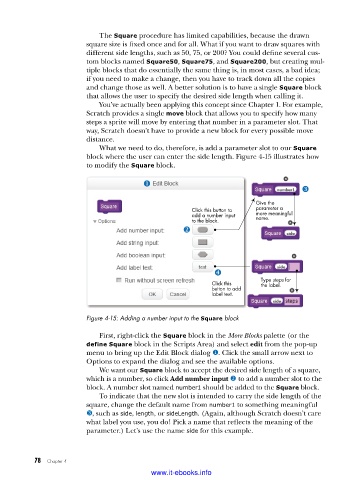
block where the user can enter the side length. Figure 4-15 illustrates how
to modify the Square block.
Give the
Click this button to parameter a
add a number input more meaningful
to the block. name.
Type steps for
Click this the label.
button to add
label text.
Figure 4-15: Adding a number input to the Square block
First, right-click the Square block in the More Blocks palette (or the
define Square block in the Scripts Area) and select edit from the pop-up
menu to bring up the Edit Block dialog u. Click the small arrow next to
Options to expand the dialog and see the available options.
We want our Square block to accept the desired side length of a square,
which is a number, so click Add number input v to add a number slot to the
block. A number slot named number1 should be added to the Square block.
To indicate that the new slot is intended to carry the side length of the
square, change the default name from number1 to something meaningful
w, such as side, length, or sideLength. (Again, although Scratch doesn’t care
what label you use, you do! Pick a name that reflects the meaning of the
parameter.) Let’s use the name side for this example.
78 Chapter 4
www.it-ebooks.info

