


Page 97 - Learn To Program With Scratch
P. 97
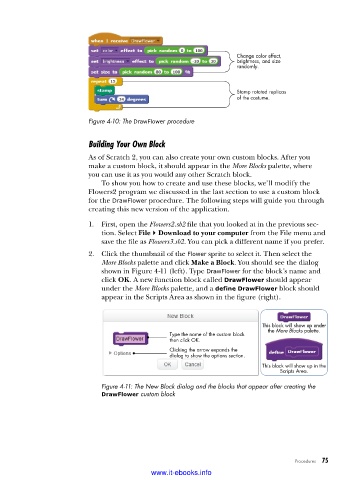
Change color effect,
                                                                   brightness, and size
                                                                   randomly.


                                                                   Stamp rotated replicas
                                                                   of the costume.


                          Figure 4-10: The DrawFlower procedure


                          Building Your Own Block
                          As of Scratch 2, you can also create your own custom blocks. After you
                          make a custom block, it should appear in the More Blocks palette, where
                          you can use it as you would any other Scratch block.
                             To show you how to create and use these blocks, we’ll modify the
                          Flowers2 program we discussed in the last section to use a custom block
                          for the DrawFlower procedure. The following steps will guide you through
                          creating this new version of the application.
                          1.  First, open the Flowers2.sb2 file that you looked at in the previous sec-
                             tion. Select File4Download to your computer from the File menu and
                             save the file as Flowers3.sb2. You can pick a different name if you prefer.
                          2.  Click the thumbnail of the Flower sprite to select it. Then select the
                             More Blocks palette and click Make a Block. You should see the dialog
                             shown in Figure 4-11 (left). Type DrawFlower for the block’s name and
                             click OK. A new function block called DrawFlower should appear
                             under the More Blocks palette, and a define DrawFlower block should
                             appear in the Scripts Area as shown in the figure (right).


                                                                          This block will show up under
                                                                           the More Blocks palette.
                                                Type the name of the custom block
                                                then click OK.
                                                Clicking the arrow expands the
                                                dialog to show the options section.
                                                                          This block will show up in the
                                                                               Scripts Area.
                             Figure 4-11: The New Block dialog and the blocks that appear after creating the
                             DrawFlower custom block


                                                                                   Procedures   75

                                           www.it-ebooks.info

