


Page 202 - Learn To Program With Scratch
P. 202
This information is all we need to realistically simulate the ball’s motion,
                         so let’s create a Scratch program so we can see this bit of physics in action
                         and deepen our understanding of trajectories. The user interface of the
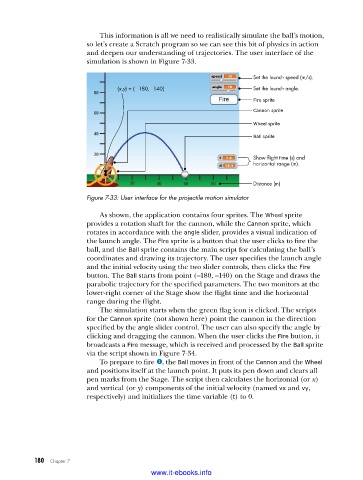
                         simulation is shown in Figure 7-33.

                                                                       Set the launch speed (m/s).
                                  (x,y) = ( –180, –140)                Set the launch angle.
                                                                       Fire sprite
                                                                       Cannon sprite

                                                                       Wheel sprite
                                                                       Ball sprite


                                                                       Show flight time (s) and
                                                                       horizontal range (m).

                                                                       Distance (m)

                         Figure 7-33: User interface for the projectile motion simulator
                             As shown, the application contains four sprites. The Wheel sprite
                           provides a rotation shaft for the cannon, while the Cannon sprite, which
                         rotates in accordance with the angle slider, provides a visual indication of
                         the launch angle. The Fire sprite is a button that the user clicks to fire the
                         ball, and the Ball sprite contains the main script for calculating the ball’s
                         coordinates and drawing its trajectory. The user specifies the launch angle
                         and the initial velocity using the two slider controls, then clicks the Fire
                         button. The Ball starts from point (–180, –140) on the Stage and draws the
                         parabolic trajectory for the specified parameters. The two monitors at the
                         lower-right corner of the Stage show the flight time and the horizontal
                         range during the flight.
                             The simulation starts when the green flag icon is clicked. The scripts
                         for the Cannon sprite (not shown here) point the cannon in the direction
                         specified by the angle slider control. The user can also specify the angle by
                         clicking and dragging the cannon. When the user clicks the Fire button, it
                         broadcasts a Fire message, which is received and processed by the Ball sprite
                         via the script shown in Figure 7-34.
                             To prepare to fire u, the Ball moves in front of the Cannon and the Wheel
                         and positions itself at the launch point. It puts its pen down and clears all
                         pen marks from the Stage. The script then calculates the horizontal (or x)
                         and vertical (or y) components of the initial velocity (named vx and vy,
                         respectively) and initializes the time variable (t) to 0.


           180   Chapter 7
                                           www.it-ebooks.info

