


Page 48 - Learn To Program With Scratch
P. 48
Absolute Motion

                         Remember, as you saw in Figure 1-4, the Stage is like a 480 × 360 rectangu-
                         lar grid whose center is point (0,0). Scratch has four absolute motion com-
                         mands (go to, glide to, set x to, and set y to) that let you tell your sprite
                         exactly where to go on that grid.

                 n o t e    If you want more details about these and other blocks, use the Scratch Tips window on
                         the right side of the Scripts panel. If you don’t see the Tips window, just click the ques-
                         tion mark near the top-right corner of Scratch’s Project Editor.

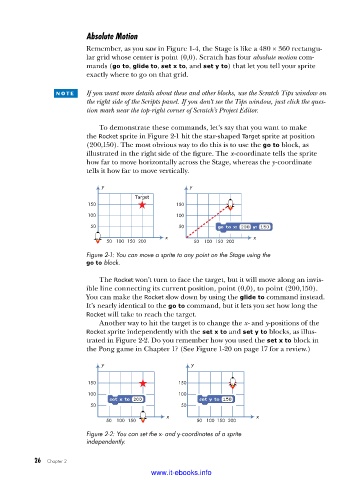
                             To demonstrate these commands, let’s say that you want to make
                         the Rocket sprite in Figure 2-1 hit the star-shaped Target sprite at position
                         (200,150). The most obvious way to do this is to use the go to block, as
                           illustrated in the right side of the figure. The x-coordinate tells the sprite
                         how far to move horizontally across the Stage, whereas the y-coordinate
                         tells it how far to move vertically.

                             y                        y
                                       Target
                         150                      150
                         100                      100
                          50                       50
                                               x                       x
                               50 100 150 200          50  100 150 200
                         Figure 2-1: You can move a sprite to any point on the Stage using the
                         go to block .

                             The Rocket won’t turn to face the target, but it will move along an invis-
                         ible line connecting its current position, point (0,0), to point (200,150).
                         You can make the Rocket slow down by using the glide to command instead.
                         It’s nearly identical to the go to command, but it lets you set how long the
                         Rocket will take to reach the target.
                             Another way to hit the target is to change the x- and y-positions of the
                         Rocket sprite independently with the set x to and set y to blocks, as illus-
                         trated in Figure 2-2. Do you remember how you used the set x to block in
                         the Pong game in Chapter 1? (See Figure 1-20 on page 17 for a review.)

                             y                        y

                         150                       150
                         100                       100
                          50                       50
                                               x                        x
                               50  100 150              50  100 150 200
                         Figure 2-2: You can set the x- and y-coordinates of a sprite
                         independently .


           26   Chapter 2
                                           www.it-ebooks.info

