


Page 53 - Learn To Program With Scratch
P. 53
Pen commands and easy draw
             EasyDraw .sb2  The motion commands you used in the previous section allow you to move
                          the sprite to any point on the Stage. Now wouldn’t it be nice to see the
                          actual path your sprite travels? Scratch’s pen can help.
                             Each sprite has an invisible pen, which can be either up or down. If the
                          pen is down, the sprite will draw as it moves. Otherwise, the sprite moves
                          without leaving any trace. The commands in the Pen palette allow you to
                          control the pen’s size, color, and shade.


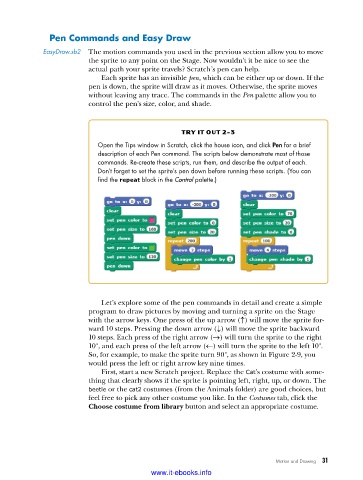
                                                    try it out 2-3
                            Open the Tips window in Scratch, click the house icon, and click Pen for a brief
                            description of each Pen command . The scripts below demonstrate most of those
                            commands . Re-create these scripts, run them, and describe the output of each .
                            Don’t forget to set the sprite’s pen down before running these scripts . (You can
                            find the repeat block in the Control palette .)


                             Let’s explore some of the pen commands in detail and create a simple
                          program to draw pictures by moving and turning a sprite on the Stage
                          with the arrow keys. One press of the up arrow ( ↑ ) will move the sprite for-
                          ward 10 steps. Pressing the down arrow ( ↓ ) will move the sprite backward
                          10 steps. Each press of the right arrow (→) will turn the sprite to the right
                          10°, and each press of the left arrow (←) will turn the sprite to the left 10°.
                          So, for example, to make the sprite turn 90°, as shown in Figure 2-9, you
                          would press the left or right arrow key nine times.
                             First, start a new Scratch project. Replace the Cat’s costume with some-
                          thing that clearly shows if the sprite is pointing left, right, up, or down. The
                          beetle or the cat2 costumes (from the Animals folder) are good choices, but
                          feel free to pick any other costume you like. In the Costumes tab, click the
                          Choose costume from library button and select an appropriate costume.


                                                                              Motion and Drawing   31

                                           www.it-ebooks.info

