


Page 49 - Learn To Program With Scratch
P. 49
You can always see a sprite’s current x- and y-position in the upper-right
                          corner of the Scripts Area. If you want to display this information on the
                          Stage, you can use the x position and y position reporter blocks. Click the
                          checkboxes next to these blocks to see their values on the Stage.

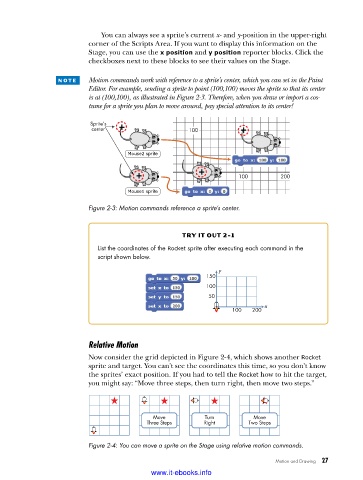
                 n o t e    Motion commands work with reference to a sprite’s center, which you can set in the Paint
                          Editor. For example, sending a sprite to point (100,100) moves the sprite so that its center
                          is at (100,100), as illustrated in Figure 2-3. Therefore, when you draw or import a cos-
                          tume for a sprite you plan to move around, pay special attention to its center!

                          Sprite’s
                          center                     100


                                     Mouse2 sprite


                                                                   100         200
                                     Mouse1 sprite

                          Figure 2-3: Motion commands reference a sprite’s center .


                                                    try it out 2-1
                            List the coordinates of the Rocket sprite after executing each command in the
                            script shown below .
                                                              y
                                                          150
                                                          100
                                                           50
                                                                          x
                                                                  100  200


                          Relative Motion
                          Now consider the grid depicted in Figure 2-4, which shows another Rocket
                          sprite and target. You can’t see the coordinates this time, so you don’t know
                          the sprites’ exact position. If you had to tell the Rocket how to hit the target,
                          you might say: “Move three steps, then turn right, then move two steps.”


                                            Move          Turn         Move
                                          Three Steps     Right       Two Steps

                          Figure 2-4: You can move a sprite on the Stage using relative motion commands .

                                                                              Motion and Drawing   27

                                           www.it-ebooks.info

