


Page 51 - Learn To Program With Scratch
P. 51
Direction anD coStumeS
The point in direction command knows nothing about the sprite’s costume .
For example, consider the two sprites shown below .
Using the Paint Editor, we drew the bird’s costume to face right and the
insect’s costume to face up . What do think will happen if you use the point in
direction 90 command (that is, point right) on each sprite?
You might guess that the insect will turn to face right, but actually, neither
sprite will turn . Although 90° is labeled “right,” that direction really refers to the
costume’s original orientation in the Paint Editor . So because the insect looks like
it’s facing up in the Paint Editor, it will still face up when you tell it to point to
90° . If you want your sprite to respond to the point in direction command as
shown in Figure 2-5, you need to draw the sprite’s costume so that it faces right
in the Paint Editor (as the bird costume does in the above figure) .
Sometimes you might only want to move your sprite horizontally or
vertically from its current position, and that’s where the change x by and
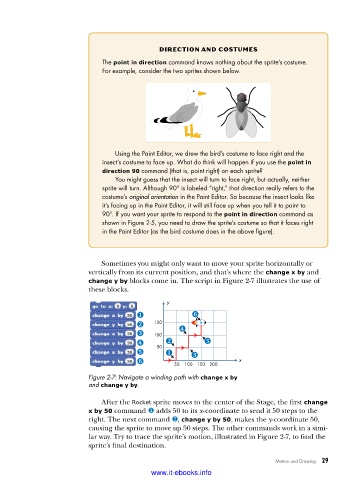
change y by blocks come in. The script in Figure 2-7 illustrates the use of
these blocks.
y
150
100
50
50 100 150 200 x
Figure 2-7: Navigate a winding path with change x by
and change y by .
After the Rocket sprite moves to the center of the Stage, the first change
x by 50 command u adds 50 to its x-coordinate to send it 50 steps to the
right. The next command v, change y by 50, makes the y-coordinate 50,
causing the sprite to move up 50 steps. The other commands work in a simi-
lar way. Try to trace the sprite’s motion, illustrated in Figure 2-7, to find the
sprite’s final destination.
Motion and Drawing 29
www.it-ebooks.info

