


Page 50 - Learn To Program With Scratch
P. 50
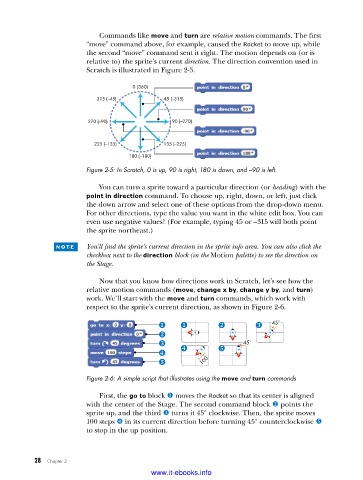
Commands like move and turn are relative motion commands. The first
“move” command above, for example, caused the Rocket to move up, while
the second “move” command sent it right. The motion depends on (or is
relative to) the sprite’s current direction. The direction convention used in
Scratch is illustrated in Figure 2-5.
0 (360)
315 (–45) 45 (–315)
270 (–90) 90 (–270)
225 (–135) 135 (–225)
180 (–180)
Figure 2-5: In Scratch, 0 is up, 90 is right, 180 is down, and –90 is left .
You can turn a sprite toward a particular direction (or heading) with the
point in direction command. To choose up, right, down, or left, just click
the down arrow and select one of these options from the drop-down menu.
For other directions, type the value you want in the white edit box. You can
even use negative values! (For example, typing 45 or –315 will both point
the sprite northeast.)
n o t e You’ll find the sprite’s current direction in the sprite info area. You can also click the
checkbox next to the direction block (in the Motion palette) to see the direction on
the Stage.
Now that you know how directions work in Scratch, let’s see how the
rela tive motion commands (move, change x by, change y by, and turn)
work. We’ll start with the move and turn commands, which work with
respect to the sprite’s current direction, as shown in Figure 2-6.
45˚
45˚
100
Figure 2-6: A simple script that illustrates using the move and turn commands
First, the go to block u moves the Rocket so that its center is aligned
with the center of the Stage. The second command block v points the
sprite up, and the third w turns it 45° clockwise. Then, the sprite moves
100 steps x in its current direction before turning 45° counterclockwise y
to stop in the up position.
28 Chapter 2
www.it-ebooks.info

