


Page 92 - Learn To Program With Scratch
P. 92
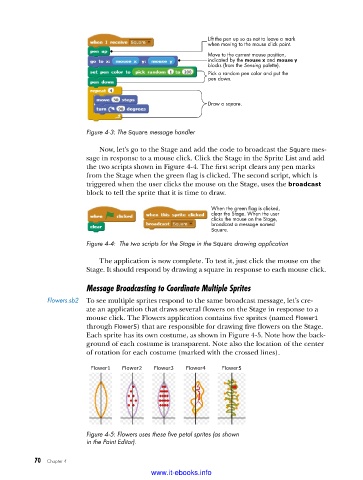
Lift the pen up so as not to leave a mark
                                                           when moving to the mouse click point.
                                                           Move to the current mouse position,
                                                           indicated by the mouse x and mouse y
                                                           blocks (from the Sensing palette).
                                                           Pick a random pen color and put the
                                                           pen down.


                                                           Draw a square.


                         Figure 4-3: The Square message handler

                             Now, let’s go to the Stage and add the code to broadcast the Square mes-
                         sage in response to a mouse click. Click the Stage in the Sprite List and add
                         the two scripts shown in Figure 4-4. The first script clears any pen marks
                         from the Stage when the green flag is clicked. The second script, which is
                         triggered when the user clicks the mouse on the Stage, uses the broadcast
                         block to tell the sprite that it is time to draw.

                                                            When the green flag is clicked,
                                                            clear the Stage. When the user
                                                            clicks the mouse on the Stage,
                                                            broadcast a message named
                                                            Square.
                         Figure 4-4:  The two scripts for the Stage in the Square drawing application
                             The application is now complete. To test it, just click the mouse on the
                         Stage. It should respond by drawing a square in response to each mouse click.

                         Message Broadcasting to Coordinate Multiple Sprites
              Flowers .sb2  To see multiple sprites respond to the same broadcast message, let’s cre-
                         ate an application that draws several flowers on the Stage in response to a
                         mouse click. The Flowers application contains five sprites (named Flower1
                         through Flower5) that are responsible for drawing five flowers on the Stage.
                         Each sprite has its own costume, as shown in Figure 4-5. Note how the back-
                         ground of each costume is transparent. Note also the location of the center
                         of rotation for each costume (marked with the crossed lines).

                          Flower1  Flower2  Flower3  Flower4   Flower5


                         Figure 4-5: Flowers uses these five petal sprites (as shown
                         in the Paint Editor) .


           70   Chapter 4
                                           www.it-ebooks.info

