


Page 244 - Scratch Programming Playground
P. 244
Save Point

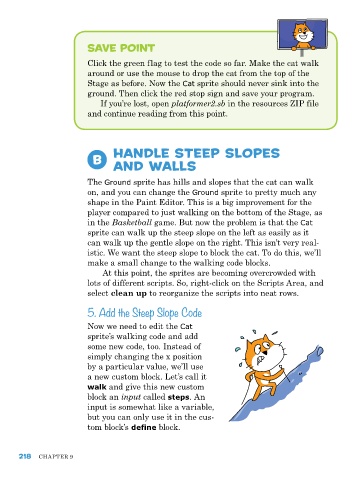
                         Click the green flag to test the code so far. Make the cat walk
                         around or use the mouse to drop the cat from the top of the
                         Stage as before. Now the Cat sprite should never sink into the
                         ground. then click the red stop sign and save your program.
                             If you’re lost, open platformer2.sb in the resources ZIp file
                         and continue reading from this point.


                                 Handle Steep Slopes
                           B     and Walls


                         the Ground sprite has hills and slopes that the cat can walk
                         on, and you can change the Ground sprite to pretty much any
                         shape in the paint editor. this is a big improvement for the
                         player compared to just walking on the bottom of the Stage, as
                         in the Basketball game. But now the problem is that the Cat
                         sprite can walk up the steep slope on the left as easily as it
                         can walk up the gentle slope on the right. this isn’t very real-
                         istic. We want the steep slope to block the cat. to do this, we’ll
                         make a small change to the walking code blocks.
                             at this point, the sprites are becoming overcrowded with
                         lots of different scripts. So, right-click on the Scripts area, and
                         select clean up to reorganize the scripts into neat rows.

                         5. Add the Steep Slope Code

                         Now we need to edit the Cat
                         sprite’s walking code and add
                         some new code, too. Instead of
                         simply changing the x position
                         by a particular value, we’ll use
                         a new custom block. Let’s call it
                         walk and give this new custom
                         block an input called steps. an
                         input is somewhat like a variable,
                         but you can only use it in the cus-
                         tom block’s define block.


      218   Chapter 9

