


Page 31 - Scratch Programming Playground
P. 31
2
               1                      Green flag and
                  Menu bar             red stop sign

                                                           3
                                                              Tabs

                 4
                     Project name


                                                                5
                     6                                              Scripts Area
                        Stage


                                                               7
                        8                                          Blocks Area
                            Sprite List


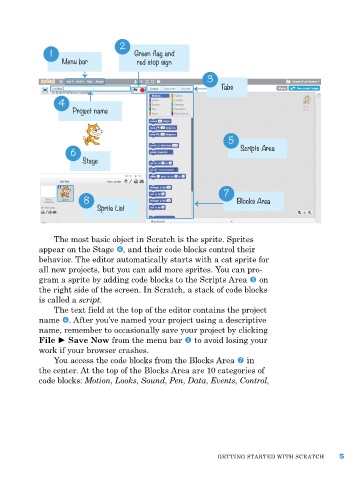
                the most basic object in Scratch is the sprite. Sprites
            appear on the Stage z, and their code blocks control their
            behavior. the editor automatically starts with a cat sprite for
            all new projects, but you can add more sprites. You can pro-
            gram a sprite by adding code blocks to the Scripts area y on
            the right side of the screen. In Scratch, a stack of code blocks
            is called a script.
                the text field at the top of the editor contains the project
            name x. after you’ve named your project using a descriptive
            name, remember to occasionally save your project by clicking
            File ► Save Now from the menu bar u to avoid losing your
            work if your browser crashes.
                You access the code blocks from the Blocks area { in
            the center. at the top of the Blocks area are 10 categories of
            code blocks: Motion, Looks, Sound, Pen, Data, Events, Control,


                                                             GettING Started WIth SCratCh      5

