


Page 17 - X-Air User's Manual
P. 17
17   X AIR User Manual

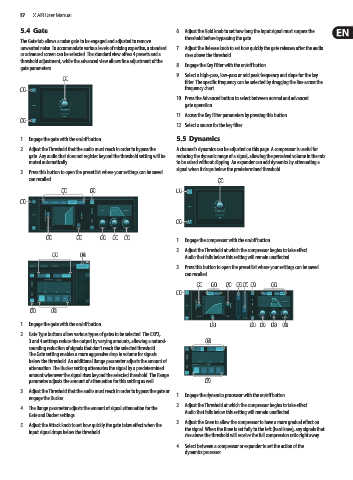
        5.4  Gate                                           6.  Adjust the Hold knob to set how long the input signal must surpass the
                                                               threshold before bypassing the gate.
        The Gate tab allows a noise gate to be engaged and adjusted to remove
        unwanted noise. To accommodate various levels of mixing expertise, a standard   7.  Adjust the Release knob to set how quickly the gate releases after the audio
        or advanced screen can be selected. The standard view offers 4 presets and a   rises above the threshold.
        threshold adjustment, while the advanced view allows fine adjustment of the   8.  Engage the Key Filter with the on/off button.
        gate parameters.
                                                            9.  Select a high-pass, low-pass or mid peak frequency and slope for the key
                      (2)                                      filter. The specific frequency can be selected by dragging the line across the
                                                               frequency chart.
        (1)
                                                            10.  Press the Advanced button to select between normal and advanced
                                                               gate operation.

                                                            11.  Access the Key Filter parameters by pressing this button.
        (3)
                                                            12.  Select a source for the key filter.
        1.  Engage the gate with the on/off button.         5.5  Dynamics
        2.  Adjust the Threshold that the audio must reach in order to bypass the   A channel’s dynamics can be adjusted on this page. A compressor is useful for
          gate. Any audio that does not register beyond the threshold setting will be   reducing the dynamic range of a signal, allowing the perceived volume in the mix
          muted automatically.                              to be raised without clipping. An expander can add dynamics by attenuating a
                                                            signal when it drops below the predetermined threshold.
        3.  Press this button to open the preset list where your settings can be saved
          can recalled.                                                   (2)

                     (2)       (8)                          (1)
        (1)


                                                            (3)


                (3)        (4)     (5)  (6)  (7)            1.  Engage the compressor with the on/off button.
                                                            2.  Adjust the Threshold at which the compressor begins to take effect.
                  (9)       (10)                               Audio that falls below this setting will remain unaffected.
                                                            3.  Press this button to open the preset list where your settings can be saved
                                                               can recalled.

                                                                   (2)  (4)  (5) (6)  (7) (8)  (9)
                                                            (1)


           (11)   (12)
        1.  Engage the gate with the on/off button.                     (3)          (10)  (11)  (12)  (13)

        2.  Gate Type buttons allow various types of gates to be selected. The EXP2,
          3 and 4 settings reduce the output by varying amounts, allowing a natural-  (14)
          sounding reduction of signals that don’t reach the selected threshold.
          The Gate setting enables a more aggressive drop in volume for signals
          below the threshold. An additional Range parameter adjusts the amount of
          attenuation. The Ducker setting attenuates the signal by a predetermined
          amount whenever the signal rises beyond the selected threshold. The Range
          parameter adjusts the amount of attenuation for this setting as well.  (15)
        3.  Adjust the Threshold that the audio must reach in order to bypass the gate or
          engage the Ducker.                                1.  Engage the dynamics processor with the on/off button.
                                                            2.  Adjust the Threshold at which the compressor begins to take effect.
        4.  The Range parameter adjusts the amount of signal attenuation for the   Audio that falls below this setting will remain unaffected.
          Gate and Ducker settings.
                                                            3.  Adjust the Knee to allow the compressor to have a more gradual effect on
        5.  Adjust the Attack knob to set how quickly the gate takes effect when the   the signal. When the Knee is set fully to the left (hard knee), any signals that
          input signal drops below the threshold.
                                                               rise above the threshold will receive the full compression ratio right away.
                                                            4.  Select between a compressor or expander to set the action of the
                                                               dynamics processor.

