


Page 19 - X-Air User's Manual
P. 19
19   X AIR User Manual

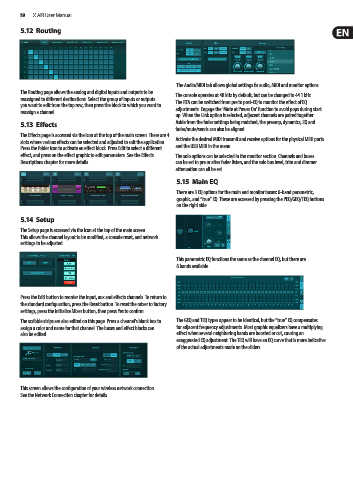
        5.12  Routing


                                                            The Audio/MIDI tab allows global settings for audio, MIDI and monitor options.
        The Routing page allows the analog and digital inputs and outputs to be   The console operates at 48 kHz by default, but can be changed to 44.1 kHz.
        reassigned to different destinations. Select the group of inputs or outputs   The RTA can be switched from pre to post-EQ to monitor the effect of EQ
        you want to edit from the top row, then press the block to which you want to
        reassign a channel.                                 adjustments. Engage the 'Mute at Power On' function to avoid pops during start
                                                            up. When the Link option is selected, adjacent channels are paired together.
        5.13  Effects                                       Aside from the fader settings being matched, the preamp, dynamics, EQ and
                                                            fader/mute/sends can also be aligned.
        The Effects page is accessed via the icon at the top of the main screen. There are 4
        slots where various effects can be selected and adjusted to suit the application.   Activate the desired MIDI transmit and receive options for the physical MIDI ports
                                                            and the USB MIDI in the menu.
        Press the folder icon to activate an effect block. Press Edit to select a different
        effect, and press on the effect graphic to edit parameters. See the Effects   The solo options can be selected in the monitor section. Channels and buses
        Descriptions chapter for more details.              can be set to pre or after fader listen, and the solo bus level, trim and dimmer
                                                            attenuation can all be set.
                                                            5.15  Main EQ

                                                            There are 3 EQ options for the main and monitor buses: 6-band parametric,
                                                            graphic, and “true” EQ. These are accessed by pressing the PEQ/GEQ/TEQ buttons
                                                            on the right side.
        5.14  Setup

        The Setup page is accessed via the icon at the top of the main screen.
        This allows the channel layout to be modified, a console reset, and network
        settings to be adjusted.


                                                            This parametric EQ functions the same as the channel EQ, but there are
                                                            6 bands available.


        Press the Edit button to reorder the input, aux and effects channels. To return to
        the standard configuration, press the Reset button. To reset the mixer to factory
        settings, press the Initialize Mixer button, then press Yes to confirm.
        The scribble strips are also edited on this page. Press a channel's blank box to   The GEQ and TEQ types appear to be identical, but the “true” EQ compensates
        assign a color and name for that channel. The buses and effect blocks can   for adjacent frequency adjustments. Most graphic equalizers have a multiplying
        also be edited.                                     effect when several neighboring bands are boosted or cut, causing an
                                                            exaggerated EQ adjustment. The TEQ will have an EQ curve that is more indicative
                                                            of the actual adjustments made on the sliders.


        This screen allows the configuration of your wireless network connection.
        See the Network Connection chapter for details.

