


Page 21 - X-Air User's Manual
P. 21
21   X AIR User Manual

        6.3  Config                                         6.  Adjust the Hold knob to set how long the input signal must surpass the
                                                               threshold before bypassing the gate.
                    (6)  (7) (8)
                                                            7.  Adjust the Release knob to set how quickly the gate releases after the audio
                                                               rises above the threshold.

        (1)                     (9)                         8.  Engage the key filter with the Key On button.
        (2)                                                 9.  Select a low cut, high cut or mid peak frequency and bandwidth/slope for
        (3)                                                    the key filter.
        (4)                     (10)                        10.  Select the frequency for the key filter.
        (5)
                                                            6.5  EQ


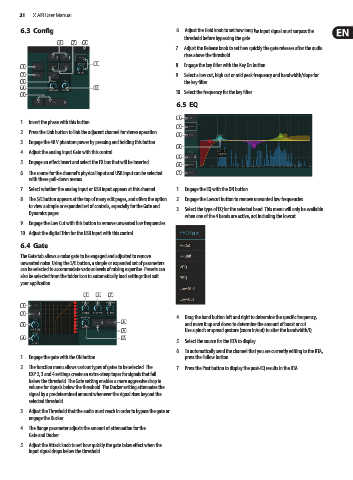
        1.  Invert the phase with this button.              (1)
                                                            (2)
        2.  Press the Link button to link the adjacent channel for stereo operation.
                                                            (3)
        3.  Engage the 48 V phantom power by pressing and holding this button.
                                                            (4)
        4.  Adjust the analog input Gain with this control.
                                                            (5)
        5.  Engage an effect Insert and select the FX bus that will be inserted.
                                                            (6)
        6.  The source for the channel’s physical input and USB input can be selected   (7)
          with these pull-down menus.
        7.  Select whether the analog input or USB input appears at this channel.  1.  Engage the EQ with the ON button.
        8.  The S/E button appears at the top of many edit pages, and offers the option   2.  Engage the Lowcut button to remove unwanted low frequencies.
          to view a simple or expanded set of controls, especially for the Gate and
          Dynamics pages.                                   3.  Select the type of EQ for the selected band. This menu will only be available
                                                               when one of the 4 bands are active, not including the lowcut.
        9.  Engage the Low Cut with this button to remove unwanted low frequencies.
        10.  Adjust the digital Trim for the USB input with this control.

        6.4  Gate
        The Gate tab allows a noise gate to be engaged and adjusted to remove
        unwanted noise. Using the S/E button, a simple or expanded set of parameters
        can be selected to accommodate various levels of mixing expertise. Presets can
        also be selected from the folder icon to automatically load settings that suit
        your application.

                             (5)  (6)  (7)
        (1)
        (2)
                                                            4.  Drag the band button left and right to determine the specific frequency,
        (3)                              (8)                   and move it up and down to determine the amount of boost or cut.
                                         (9)                   Use a pinch or spread gesture (zoom in/out) to alter the bandwidth/Q.
        (4)                              (10)               5.  Select the source for the RTA to display.
                                                            6.  To automatically send the channel that you are currently editing to the RTA,
        1.  Engage the gate with the ON button.                press the Follow button.

        2.  The function menu allows various types of gates to be selected. The   7.  Press the Post button to display the post-EQ results in the RTA.
          EXP 2, 3 and 4 settings create an extra-steep taper for signals that fall
          below the threshold. The Gate setting enables a more aggressive drop in
          volume for signals below the threshold. The Ducker setting attenuates the
          signal by a predetermined amount whenever the signal rises beyond the
          selected threshold.
        3.  Adjust the Threshold that the audio must reach in order to bypass the gate or
          engage the Ducker.
        4.  The Range parameter adjusts the amount of attenuation for the
          Gate and Ducker.
        5.  Adjust the Attack knob to set how quickly the gate takes effect when the
          input signal drops below the threshold.

