


Page 18 - X-Air User's Manual
P. 18
18  X AIR User Manual


           5.  Adjust the Ratio to determine how aggressively the dynamics are affected.  5.7  Insert
           6.  The Wet/Dry ratio determines how much of the signal is left unaffected by
             the processor.
           7.  Use the Gain fader to compensate for changes in level caused by
             the processor.
           8.  Engage the Key Filter with the on/off button.
                                                               Press the folder icon to engage the insert effect. Scroll through the list of effects
           9.  Select between an aggressive Linear or smooth Logarithmic operation,
             and between Peak or RMS input response. RMS is most common in   blocks to select the desired routing.
             compressors, and responds to the average level of incoming audio,   5.8  Presets
             whereas the Peak setting responds to brief spikes in loudness that would
             be allowed through when set to RMS.
           10.  Access the Key Filter parameters by pressing this button.
           11.  Adjust the Attack knob to set how quickly the compressor takes effect when
             the input signal rises above the threshold.
           12.  Adjust the Hold knob to set how long the compressor takes to enter the   The Presets tab allows channel presets to be recalled, edited and saved.
             release cycle once the audio drops below the threshold.
                                                               Press the page icon on the right to save a new preset. Press the pencil icon to
           13.  Adjust the Release knob to set how quickly the compressor releases after the   edit or delete a preset, and press on one of the saved presets to save changes
             audio drops below the threshold.                  or load that preset.
           14.  Select a high-pass, low-pass or mid peak frequency and slope for the key   5.9  Output
             filter. The specific frequency can be selected by dragging the line across the
             frequency chart.

           15.  Select a source for the key filter.
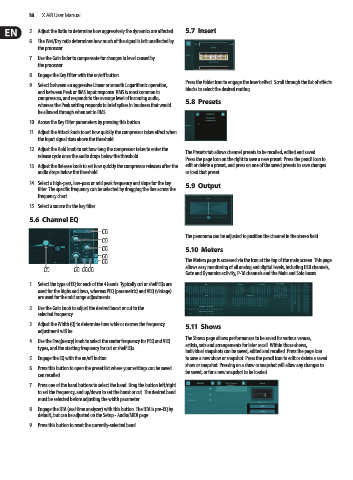
           5.6  Channel EQ

                                   (1)
                                                               The panorama can be adjusted to position the channel in the stereo field.
                                   (2)
                                   (3)                         5.10  Meters
                                   (6)
                                   (5)                         The Meters page is accessed via the icon at the top of the main screen. This page
                                                               allows easy monitoring of all analog and digital levels, including USB channels,
                (7)       (4) (8)(9)
                                                               Gate and Dynamics activity, P-16 channels and the Main and Solo buses.
           1.  Select the type of EQ for each of the 4 bands. Typically cut or shelf EQs are
             used for the highs and lows, whereas PEQ (parametric) and VEQ (vintage)
             are used for the mid range adjustments.
           2.  Use the Gain knob to adjust the desired boost or cut to the
             selected frequency.
           3.  Adjust the Width (Q) to determine how wide or narrow the frequency   5.11  Shows
             adjustment will be.
                                                               The Shows page allows performances to be saved for various venues,
           4.  Use the Freq(uency) knob to select the center frequency for PEQ and VEQ
             types, and the starting frequency for cut or shelf EQs.  artists, sets and arrangements for later recall. Within those shows,
                                                               individual snapshots can be saved, edited and recalled. Press the page icon
           5.  Engage the EQ with the on/off button.           to save a new show or snapshot. Press the pencil icon to edit or delete a saved
                                                               show or snapshot. Pressing on a show or snapshot will allow any changes to
           6.  Press this button to open the preset list where your settings can be saved   be saved, or for a new snapshot to be loaded.
             can recalled.
           7.  Press one of the band buttons to select the band. Drag the button left/right
             to set the frequency, and up/down to set the boost or cut. The desired band
             must be selected before adjusting the width parameter.
           8.  Engage the RTA (real time analyzer) with this button. The RTA is pre-EQ by
             default, but can be adjusted on the Setup - Audio/MIDI page.

           9.  Press this button to reset the currently-selected band.

