


Page 47 - Computing E-Book Grade 6
P. 47
The City School  2021-2022


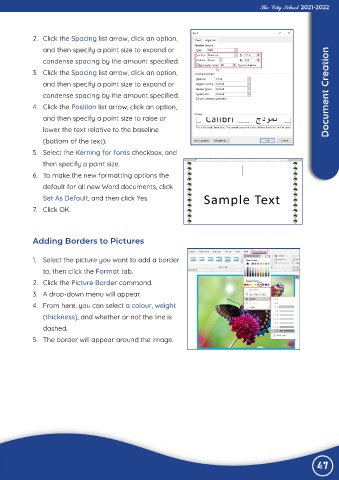
             2.  Click the Spacing list arrow, click an option,

                and then specify a point size to expand or
                condense spacing by the amount specified.

             3.  Click the Spacing list arrow, click an option,
                and then specify a point size to expand or

                condense spacing by the amount specified.                                                           Document Creation
             4.  Click the Position list arrow, click an option,

                and then specify a point size to raise or
                lower the text relative to the baseline

                (bottom of the text).
             5.  Select the Kerning for fonts checkbox, and

                then specify a point size.
             6.  To make the new formatting options the

                default for all new Word documents, click
                Set As Default, and then click Yes.

             7.  Click OK.


             Adding Borders to Pictures


             1.  Select the picture you want to add a border
                to, then click the Format tab.

             2.  Click the Picture Border command.
             3.  A drop-down menu will appear.

             4.  From here, you can select a colour, weight
                (thickness), and whether or not the line is

                dashed.
             5.  The border will appear around the image.


                                                                                                                47

