


Page 12 - Computing E-Book Grade 3
P. 12
The City School  2021-2022


                                                                                              P


                 Maximize the window              Minimize the window        Choose a presentation
                                                                             display mode
           1.3.  File Compression


           If you are running short on hard drive space, you can save precious free space by creating
           compressed folders that automatically compress every file and folder that you put into

           them. Zipped (compressed) files take up less storage space and can be transferred to
           other computers more quickly than uncompressed files.


           Zip File or Folder


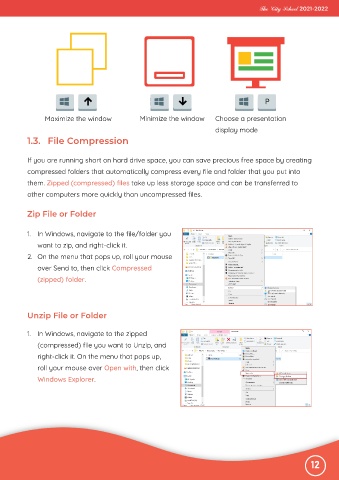
           1.  In Windows, navigate to the file/folder you

              want to zip, and right-click it.
           2.  On the menu that pops up, roll your mouse

              over Send to, then click Compressed
              (zipped) folder.


           Unzip File or Folder


           1.  In Windows, navigate to the zipped
              (compressed) file you want to Unzip, and

              right-click it. On the menu that pops up,

              roll your mouse over Open with, then click
              Windows Explorer.


                                                                                                              12

