


Page 28 - 18-868 SEO PowerSuite Workflow_VPMGC
P. 28
SEO Workflow


               Featured Snippets, Images, Local Packs + 12 more Google result types, along with

               the organic listings, you can set that up in Rank Tracker’s settings.


               How-to: Enable recording of SERP history. Go to Preferences > Rank Checking

               Mode in Rank Tracker and make sure that the Track organic results only box is

               unchecked, and the Track multiple results for keyword box is checked. Once you’ve
               done this, SERP features will be tracked along with the regular organic results
               every time you check rankings.


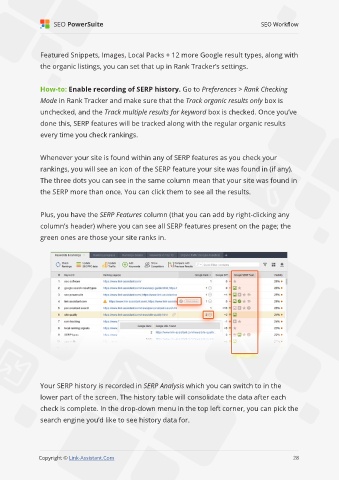
               Whenever your site is found within any of SERP features as you check your
               rankings, you will see an icon of the SERP feature your site was found in (if any).
               The three dots you can see in the same column mean that your site was found in

               the SERP more than once. You can click them to see all the results.


               Plus, you have the SERP Features column (that you can add by right-clicking any
               column’s header) where you can see all SERP features present on the page; the

               green ones are those your site ranks in.


               Your SERP history is recorded in SERP Analysis which you can switch to in the
               lower part of the screen. The history table will consolidate the data after each
               check is complete. In the drop-down menu in the top left corner, you can pick the

               search engine you’d like to see history data for.


                                                                                                             28

               Copyright © Link-Assistant.Com                                                           28

