


Page 41 - MercNET User's Guide
P. 41
5 5. .    Select I Agree to verify you have completed all necessary inspections as stated on the CPO
                    Inspection Sheet and you have sent the sheet to Mercury
               6.  Complete the Product Registration information such as Sale Date, Owner Information, Engine
                    Information, and Boat Information
               7.  Select Submit
               8.  Select the radio button for the number of years the consumer is purchasing
        Note: Your cost is show in Parentheses
               9.  Enter the Customer Cost
               10.  Select Accept Plan
               11.  Check the I understand I will be invoiced check box
               12.  Select I accept. The CPO contract has been submitted to Mercury
               13.  Select Print Plan to print the plan for your consumer

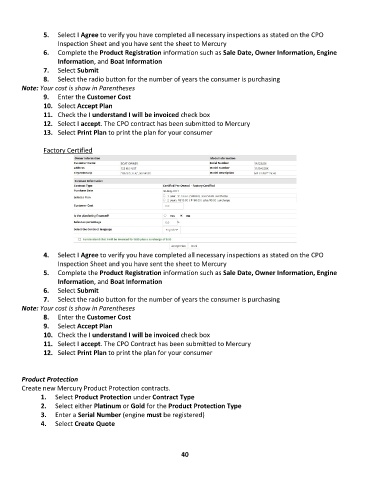
               Factory Certified


                4 4. .    Select I Agree to verify you have completed all necessary inspections as stated on the CPO
                    Inspection Sheet and you have sent the sheet to Mercury
                5 5. .    Complete the Product Registration information such as Sale Date, Owner Information, Engine
                    Information, and Boat Information
                6 6. .    Select Submit
                7 7. .    Select the radio button for the number of years the consumer is purchasing
        Note: Your cost is show in Parentheses
                8 8. .    Enter the Customer Cost
                9 9. .    Select Accept Plan
                1 10 0. .    Check the I understand I will be invoiced check box
                1 11 1. .    Select I accept. The CPO Contract has been submitted to Mercury
                1 12 2. .    Select Print Plan to print the plan for your consumer


        Product Protection
        Create new Mercury Product Protection contracts.
               1.  Select Product Protection under Contract Type
               2.  Select either Platinum or Gold for the Product Protection Type
               3.  Enter a Serial Number (engine must be registered)
               4.  Select Create Quote


                                                             40

