


Page 43 - MercNET User's Guide
P. 43
7.  Enter the Customer Cost
               8.  Select Accept Plan
               9.  Check the I understand that I will be invoiced checkbox
               10.  Select I Accept.  The Major Assembly Contract has been submitted to Mercury

               11.  Select Print Plan

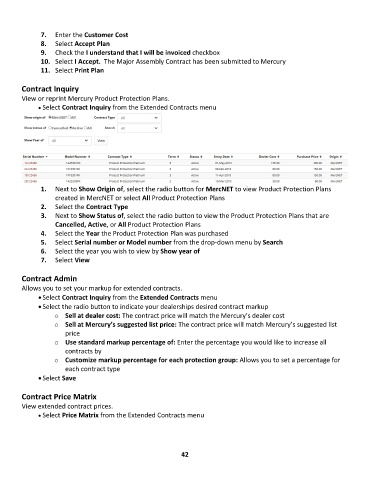
        Contract Inquiry
        View or reprint Mercury Product Protection Plans.
              • •   Select Contract Inquiry from the Extended Contracts menu


               1.  Next to Show Origin of, select the radio button for MercNET to view Product Protection Plans
                   created in MercNET or select All Product Protection Plans
               2.  Select the Contract Type
               3.  Next to Show Status of, select the radio button to view the Product Protection Plans that are
                   Cancelled, Active, or All Product Protection Plans
               4.  Select the Year the Product Protection Plan was purchased
               5.  Select Serial number or Model number from the drop-down menu by Search
               6.  Select the year you wish to view by Show year of
               7.  Select View

        Contract Admin
        Allows you to set your markup for extended contracts.
              • Select Contract Inquiry from the Extended Contracts menu
              • Select the radio button to indicate your dealerships desired contract markup
                   o  Sell at dealer cost: The contract price will match the Mercury’s dealer cost
                   o  Sell at Mercury’s suggested list price: The contract price will match Mercury’s suggested list
                       price
                   o  Use standard markup percentage of: Enter the percentage you would like to increase all
                       contracts by
                   o  Customize markup percentage for each protection group: Allows you to set a percentage for
                       each contract type
              • Select Save

        Contract Price Matrix
        View extended contract prices.
              • •   Select Price Matrix from the Extended Contracts menu


                                                             42

