


Page 37 - MercNET User's Guide
P. 37
Completing an Open Claim
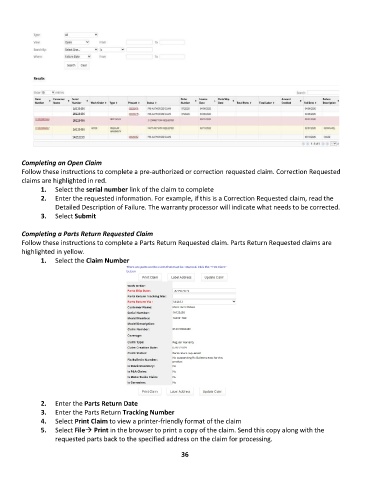
        Follow these instructions to complete a pre-authorized or correction requested claim. Correction Requested
        claims are highlighted in red.
               1.  Select the serial number link of the claim to complete
               2.  Enter the requested information. For example, if this is a Correction Requested claim, read the
                   Detailed Description of Failure. The warranty processor will indicate what needs to be corrected.
               3.  Select Submit

        Completing a Parts Return Requested Claim
        Follow these instructions to complete a Parts Return Requested claim. Parts Return Requested claims are
        highlighted in yellow.
               1.  Select the Claim Number


               2.  Enter the Parts Return Date
               3.  Enter the Parts Return Tracking Number
               4.  Select Print Claim to view a printer-friendly format of the claim
               5.  Select File→ Print in the browser to print a copy of the claim. Send this copy along with the
                   requested parts back to the specified address on the claim for processing.

                                                             36

