


Page 65 - Computing book 6
P. 65
Modular Designing                                                                    Class 6


               Grid Style

               On the page, you can change the grid colour, grid style, grid spacing and grid subdivisions.

               Show or Hide Rulers
               Each drawing window has vertical and horizontal rulers that show measurements at the scale of the
               drawing.
               On the Page Layout menu, click Rulers & Grid. In the popup dialogue, you can uncheck the Show
               rulers option.

               Change the Ruler Measurement Units
               To change ruler measurement units, on the Page Layout tab, click Ruler & Grid button. Under
               Measurement Units, click the units you want.
               To change the spacing of ruler subdivisions, press F6 key to open the Page Setup dialogue, and then
               click Ruler & Grid. Under Subdivisions, click the spacing you want.
               Note: For some types of drawings, you may want to change the measurement units to pixels.
               However, a pixel isn't a unit of measurement. A pixel is just a dot on a screen and the size of the dot
               varies for different screens.

               Printing:
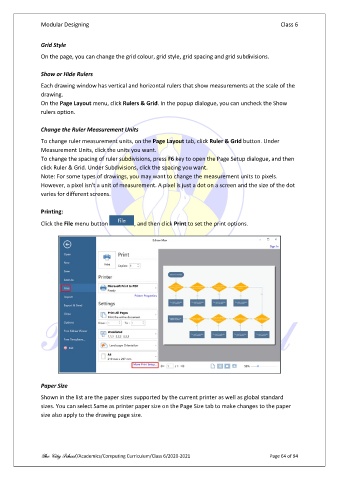
               Click the File menu button       , and then click Print to set the print options.


               Paper Size
               Shown in the list are the paper sizes supported by the current printer as well as global standard
               sizes. You can select Same as printer paper size on the Page Size tab to make changes to the paper
               size also apply to the drawing page size.


               The City School /Academics/Computing Curriculum/Class 6/2020-2021                Page 64 of 94

