


Page 51 - Computing Book 4
P. 51
Spreadsheet Formatting                                                               Class 4


               Relative Reference:

               Relative Reference is the cell reference. When you copy a cell that has a formula, the formula
               changes automatically. The change depends on the relative position of rows and columns.
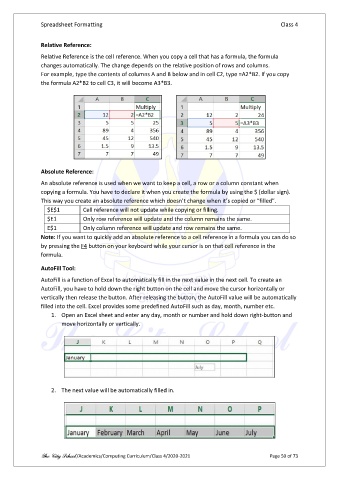
               For example, type the contents of columns A and B below and in cell C2, type =A2*B2. If you copy
               the formula A2*B2 to cell C3, it will become A3*B3.


               Absolute Reference:

               An absolute reference is used when we want to keep a cell, a row or a column constant when
               copying a formula. You have to declare it when you create the formula by using the $ (dollar sign).
               This way you create an absolute reference which doesn’t change when it’s copied or “filled”.
                  $E$1        Cell reference will not update while copying or filling.
                  $E1         Only row reference will update and the column remains the same.
                  E$1         Only column reference will update and row remains the same.
               Note: If you want to quickly add an absolute reference to a cell reference in a formula you can do so
               by pressing the F4 button on your keyboard while your cursor is on that cell reference in the
               formula.

               AutoFill Tool:

               AutoFill is a function of Excel to automatically fill in the next value in the next cell. To create an
               AutoFill, you have to hold down the right button on the cell and move the cursor horizontally or
               vertically then release the button. After releasing the button, the AutoFill value will be automatically
               filled into the cell. Excel provides some predefined AutoFill such as day, month, number etc.
                   1.  Open an Excel sheet and enter any day, month or number and hold down right-button and
                       move horizontally or vertically.


                   2.  The next value will be automatically filled in.


               The City School /Academics/Computing Curriculum/Class 4/2020-2021                Page 50 of 73

