


Page 46 - Computing Book 4
P. 46
Spreadsheet Formatting                                                               Class 4


               Use Autofill Tool to Replicate the Same Function on Multiple Rows:

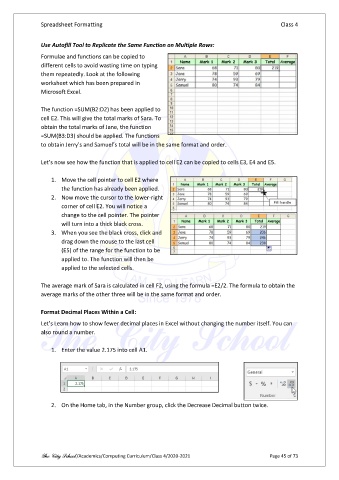
               Formulae and functions can be copied to
               different cells to avoid wasting time on typing
               them repeatedly. Look at the following
               worksheet which has been prepared in
               Microsoft Excel.

               The function =SUM(B2:D2) has been applied to
               cell E2. This will give the total marks of Sara. To
               obtain the total marks of Jane, the function
               =SUM(B3:D3) should be applied. The functions
               to obtain Jerry’s and Samuel’s total will be in the same format and order.

               Let’s now see how the function that is applied to cell E2 can be copied to cells E3, E4 and E5.

                   1.  Move the cell pointer to cell E2 where
                       the function has already been applied.
                   2.  Now move the cursor to the lower-right
                       corner of cell E2. You will notice a
                       change to the cell pointer. The pointer
                       will turn into a thick black cross.
                   3.  When you see the black cross, click and
                       drag down the mouse to the last cell
                       (E5) of the range for the function to be
                       applied to. The function will then be
                       applied to the selected cells.

               The average mark of Sara is calculated in cell F2, using the formula =E2/2. The formula to obtain the
               average marks of the other three will be in the same format and order.

               Format Decimal Places Within a Cell:
               Let’s Learn how to show fewer decimal places in Excel without changing the number itself. You can
               also round a number.

                   1.  Enter the value 2.175 into cell A1.


                   2.  On the Home tab, in the Number group, click the Decrease Decimal button twice.


               The City School /Academics/Computing Curriculum/Class 4/2020-2021                Page 45 of 73

