


Page 48 - Computing Book 5
P. 48
Presenting Your Ideas                                                                Class 5


               Advanced Presentation Options:

               You will now learn how to rehearse and record slide shows in advance. You will also learn about
               alternative presentation options, such as creating a video of your presentation or presenting your
               slide show online to remote audiences. Finally, you will learn how to customize your presentation
               with hidden or rearranged slides.

               Rehearsing slide show timings
               Rehearsing timings can be useful if you want to set up a presentation to play at a certain speed
               without having to click through the slides to present it. Think of it as a tool to help you practice
               presenting your slide show. Using this feature, you can save timings for each slide and animation.
               PowerPoint will then playback the presentation with the same timings when you present it.

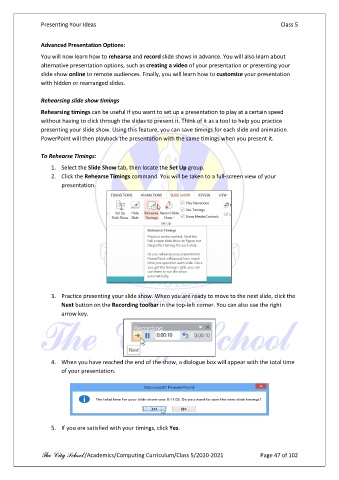
               To Rehearse Timings:
                   1.  Select the Slide Show tab, then locate the Set Up group.
                   2.  Click the Rehearse Timings command. You will be taken to a full-screen view of your
                       presentation.


                   3.  Practice presenting your slide show. When you are ready to move to the next slide, click the
                       Next button on the Recording toolbar in the top-left corner. You can also use the right
                       arrow key.


                   4.  When you have reached the end of the show, a dialogue box will appear with the total time
                       of your presentation.


                   5.  If you are satisfied with your timings, click Yes.


               The City School /Academics/Computing Curriculum/Class 5/2020-2021            Page 47 of 102

