


Page 50 - Computing Book 5
P. 50
Presenting Your Ideas                                                                Class 5


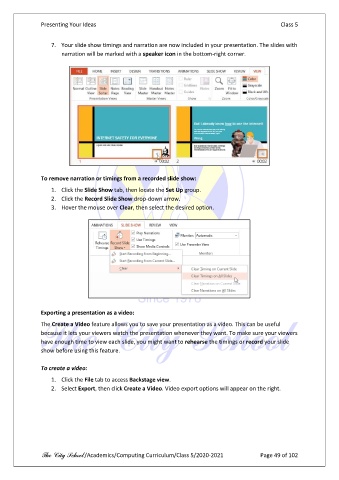
                   7.  Your slide show timings and narration are now included in your presentation. The slides with
                       narration will be marked with a speaker icon in the bottom-right corner.


               To remove narration or timings from a recorded slide show:

                   1.  Click the Slide Show tab, then locate the Set Up group.
                   2.  Click the Record Slide Show drop-down arrow.
                   3.  Hover the mouse over Clear, then select the desired option.


               Exporting a presentation as a video:
               The Create a Video feature allows you to save your presentation as a video. This can be useful
               because it lets your viewers watch the presentation whenever they want. To make sure your viewers
               have enough time to view each slide, you might want to rehearse the timings or record your slide
               show before using this feature.

               To create a video:

                   1.  Click the File tab to access Backstage view.
                   2.  Select Export, then click Create a Video. Video export options will appear on the right.


               The City School /Academics/Computing Curriculum/Class 5/2020-2021            Page 49 of 102

