


Page 64 - Computing Book 5
P. 64
Desktop Publishing                                                                   Class 5


               Inserting and Placing Images:

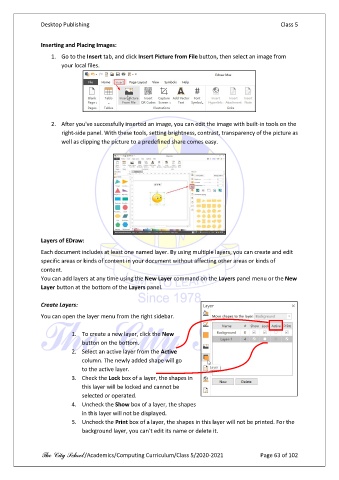
                   1.  Go to the Insert tab, and click Insert Picture from File button, then select an image from
                       your local files.


                   2.  After you've successfully inserted an image, you can edit the image with built-in tools on the
                       right-side panel. With these tools, setting brightness, contrast, transparency of the picture as
                       well as clipping the picture to a predefined share comes easy.


               Layers of EDraw:

               Each document includes at least one named layer. By using multiple layers, you can create and edit
               specific areas or kinds of content in your document without affecting other areas or kinds of
               content.
               You can add layers at any time using the New Layer command on the Layers panel menu or the New
               Layer button at the bottom of the Layers panel.

               Create Layers:

               You can open the layer menu from the right sidebar.

                          1.  To create a new layer, click the New
                              button on the bottom.

                          2.  Select an active layer from the Active
                              column. The newly added shape will go
                              to the active layer.
                          3.  Check the Lock box of a layer, the shapes in
                              this layer will be locked and cannot be
                              selected or operated.
                          4.  Uncheck the Show box of a layer, the shapes
                              in this layer will not be displayed.
                          5.  Uncheck the Print box of a layer, the shapes in this layer will not be printed. For the
                              background layer, you can’t edit its name or delete it.


               The City School /Academics/Computing Curriculum/Class 5/2020-2021            Page 63 of 102

