


Page 63 - Computing Book 5
P. 63
Desktop Publishing                                                                   Class 5


               To adjust the default page margin value, you can:
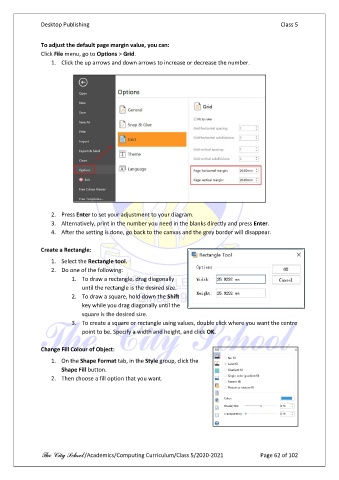
               Click File menu, go to Options > Grid.
                   1.  Click the up arrows and down arrows to increase or decrease the number.


                   2.  Press Enter to set your adjustment to your diagram.
                   3.  Alternatively, print in the number you need in the blanks directly and press Enter.
                   4.  After the setting is done, go back to the canvas and the grey border will disappear.

               Create a Rectangle:

                   1.  Select the Rectangle tool.
                   2.  Do one of the following:
                          1.  To draw a rectangle, drag diagonally
                              until the rectangle is the desired size.
                          2.  To draw a square, hold down the Shift
                              key while you drag diagonally until the
                              square is the desired size.
                          3.  To create a square or rectangle using values, double click where you want the centre
                              point to be. Specify a width and height, and click OK.

               Change Fill Colour of Object:
                   1.  On the Shape Format tab, in the Style group, click the
                       Shape Fill button.
                   2.  Then choose a fill option that you want.


               The City School /Academics/Computing Curriculum/Class 5/2020-2021            Page 62 of 102

