


Page 66 - Computing Book 5
P. 66
Desktop Publishing                                                                   Class 5


               Apply Transparency Effects:

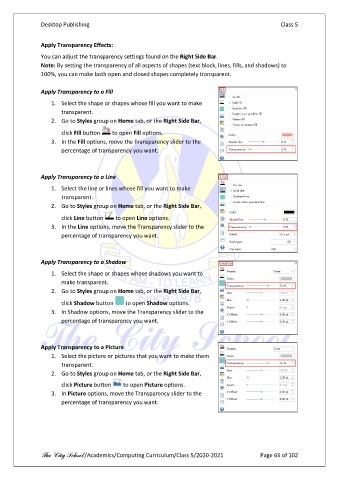
               You can adjust the transparency settings found on the Right Side Bar.
               Note: By setting the transparency of all aspects of shapes (text block, lines, fills, and shadows) to
               100%, you can make both open and closed shapes completely transparent.

               Apply Transparency to a Fill
                   1.  Select the shape or shapes whose fill you want to make
                       transparent.
                   2.  Go to Styles group on Home tab, or the Right Side Bar,
                       click Fill button    to open Fill options.
                   3.  In the Fill options, move the Transparency slider to the
                       percentage of transparency you want.


               Apply Transparency to a Line

                   1.  Select the line or lines whose fill you want to make
                       transparent.
                   2.  Go to Styles group on Home tab, or the Right Side Bar,

                       click Line button    to open Line options.
                   3.  In the Line options, move the Transparency slider to the
                       percentage of transparency you want.


               Apply Transparency to a Shadow
                   1.  Select the shape or shapes whose shadows you want to
                       make transparent.
                   2.  Go to Styles group on Home tab, or the Right Side Bar,

                       click Shadow button    to open Shadow options.
                   3.  In Shadow options, move the Transparency slider to the
                       percentage of transparency you want.


               Apply Transparency to a Picture
                   1.  Select the picture or pictures that you want to make them
                       transparent.
                   2.  Go to Styles group on Home tab, or the Right Side Bar,

                       click Picture button    to open Picture options.
                   3.  In Picture options, move the Transparency slider to the
                       percentage of transparency you want.


               The City School /Academics/Computing Curriculum/Class 5/2020-2021            Page 65 of 102

