


Page 67 - Computing Book 5
P. 67
Desktop Publishing                                                                   Class 5


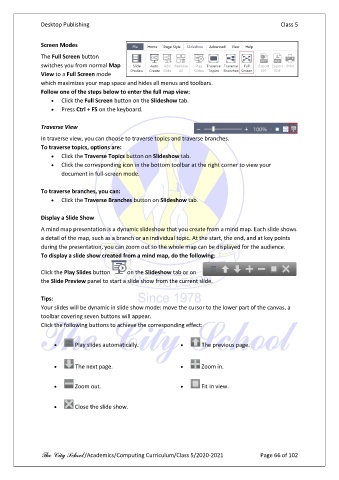
               Screen Modes

               The Full Screen button
               switches you from normal Map
               View to a Full Screen mode
               which maximizes your map space and hides all menus and toolbars.
               Follow one of the steps below to enter the full map view:
                   •  Click the Full Screen button on the Slideshow tab.
                   •  Press Ctrl + F5 on the keyboard.

               Traverse View

               In traverse view, you can choose to traverse topics and traverse branches.
               To traverse topics, options are:
                   •  Click the Traverse Topics button on Slideshow tab.
                   •  Click the corresponding icon in the bottom toolbar at the right corner to view your
                       document in full-screen mode.

               To traverse branches, you can:
                   •  Click the Traverse Branches button on Slideshow tab.

               Display a Slide Show

               A mind map presentation is a dynamic slideshow that you create from a mind map. Each slide shows
               a detail of the map, such as a branch or an individual topic. At the start, the end, and at key points
               during the presentation, you can zoom out so the whole map can be displayed for the audience.
               To display a slide show created from a mind map, do the following:


               Click the Play Slides button   on the Slideshow tab or on
               the Slide Preview panel to start a slide show from the current slide.

               Tips:
               Your slides will be dynamic in slide show mode: move the cursor to the lower part of the canvas, a
               toolbar covering seven buttons will appear.
               Click the following buttons to achieve the corresponding effect:


                    •       Play slides automatically.          •       The previous page.


                    •       The next page.                      •       Zoom in.


                    •       Zoom out.                           •       Fit in view.


                    •       Close the slide show.


               The City School /Academics/Computing Curriculum/Class 5/2020-2021            Page 66 of 102

