


Page 12 - Employee Navigator Guide
P. 12
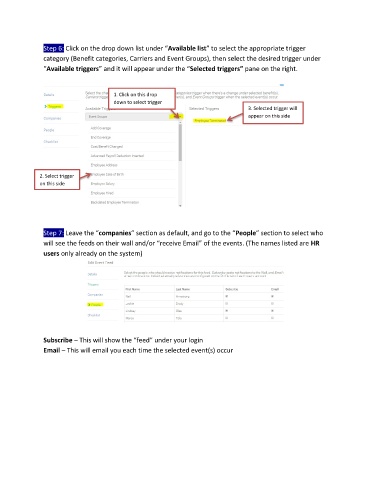
Step 6: Click on the drop down list under “Available list” to select the appropriate trigger
               category (Benefit categories, Carriers and Event Groups), then select the desired trigger under

               “Available triggers” and it will appear under the “Selected triggers” pane on the right.


                                       1. Click on this drop
                                       down to select trigger
                                       category                                    3. Selected trigger will
                                                                                   appear on this side


              2. Select trigger
              on this side


               Step 7: Leave the “companies” section as default, and go to the “People” section to select who

               will see the feeds on their wall and/or “receive Email” of the events. (The names listed are HR
               users only already on the system)


               Subscribe – This will show the “feed” under your login
               Email – This will email you each time the selected event(s) occur

