


Page 9 - Employee Navigator Guide
P. 9
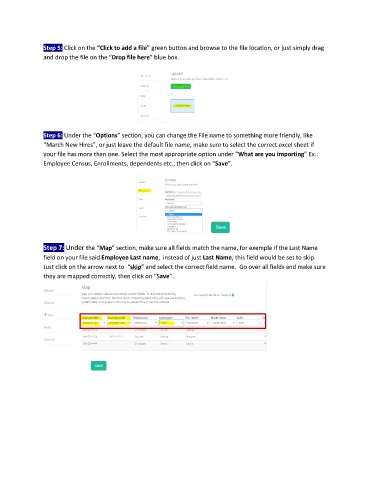
Step 5: Click on the “Click to add a file” green button and browse to the file location, or just simply drag
               and drop the file on the “Drop file here” blue box.


               Step 6: Under the “Options” section, you can change the File name to something more friendly, like
               “March New Hires”, or just leave the default file name, make sure to select the correct excel sheet if
               your file has more than one. Select the most appropriate option under “What are you importing” Ex.:
               Employee Census, Enrollments, dependents etc., then click on “Save”.


               Step 7: Under the “Map” section, make sure all fields match the name, for exemple if the Last Name
               field on your file said Employee Last name,  instead of just Last Name, this field would be set to skip.
               Just click on the arrow next to  “skip” and select the correct field name.  Go over all fields and make sure
               they are mapped correctly, then click on “Save”.

