


Page 103 - Scratch Programming Playground
P. 103
C     Make a hovering
                   Basketball hoop


            now that the Cat sprite is complete, let’s move on to the next
            sprite in the game: the basketball hoop.
            5. Create the Hoop Sprite


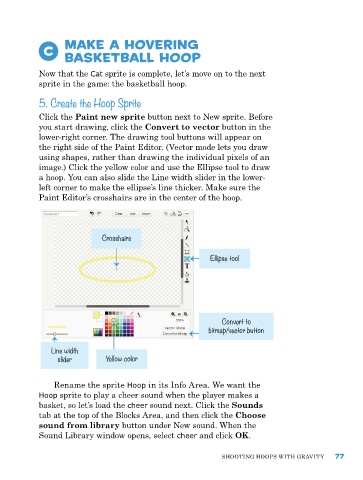
            Click the Paint new sprite button next to new sprite. Before
            you start drawing, click the Convert to vector button in the
            lower-right corner. The drawing tool buttons will appear on
            the right side of the paint editor. (vector mode lets you draw
            using shapes, rather than drawing the individual pixels of an
            image.) Click the yellow color and use the ellipse tool to draw
            a hoop. you can also slide the Line width slider in the lower-
            left corner to make the ellipse’s line thicker. Make sure the
            paint editor’s crosshairs are in the center of the hoop.


                             Crosshairs


                                                           Ellipse tool


                                                               Convert to
                                                           bitmap/vector button


               Line width
                 slider       Yellow color


                rename the sprite Hoop in its Info area. we want the
            Hoop sprite to play a cheer sound when the player makes a
            basket, so let’s load the cheer sound next. Click the Sounds
            tab at the top of the Blocks area, and then click the Choose
            sound from library button under new sound. when the
            Sound Library window opens, select cheer and click OK.


                                                               ShooTIng hoopS wITh gravITy    77

