


Page 48 - Scratch Programming Playground
P. 48
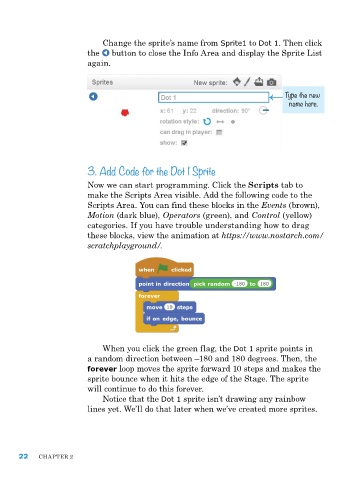
Change the sprite’s name from Sprite1 to Dot 1. Then click
                         the   button to close the Info area and display the Sprite List
                         again.


                                                                                Type the new
                                                                                 name here.


                         3. Add Code for the Dot 1 Sprite

                         now we can start programming. Click the Scripts tab to
                         make the Scripts area visible. add the following code to the
                         Scripts area. You can find these blocks in the Events (brown),
                         Motion (dark blue), Operators (green), and Control (yellow)
                         categories. If you have trouble understanding how to drag
                         these blocks, view the animation at https://www.nostarch.com/
                         scratchplayground/.


                             when you click the green flag, the Dot 1 sprite points in
                         a random direction between –180 and 180 degrees. Then, the
                         forever loop moves the sprite forward 10 steps and makes the
                         sprite bounce when it hits the edge of the Stage. The sprite
                         will continue to do this forever.
                             notice that the Dot 1 sprite isn’t drawing any rainbow
                         lines yet. we’ll do that later when we’ve created more sprites.


      22    ChapTer 2

