


Page 46 - Python Data Science Handbook
P. 46
For more information on %prun, as well as its available options, use the IPython help
               functionality (i.e., type %prun? at the IPython prompt).

               Line-by-Line Profiling with %lprun

               The function-by-function profiling of %prun is useful, but sometimes it’s more conve‐
               nient to have a line-by-line profile report. This is not built into Python or IPython,
               but there is a line_profiler package available for installation that can do this. Start
               by using Python’s packaging tool, pip, to install the line_profiler package:

                   $ pip install line_profiler
               Next, you can use IPython to load the line_profiler IPython extension, offered as
               part of this package:

                   In[9]: %load_ext line_profiler
               Now the %lprun  command will do a line-by-line profiling of any function—in this
               case, we need to tell it explicitly which functions we’re interested in profiling:

                   In[10]: %lprun -f sum_of_lists sum_of_lists(5000)
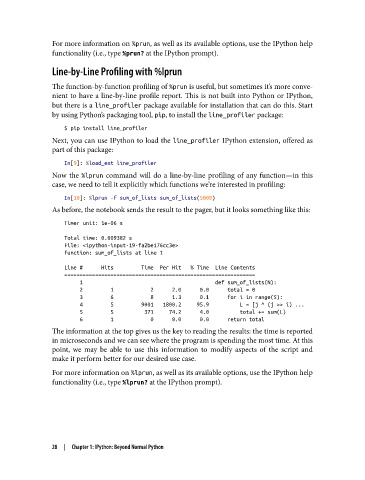
               As before, the notebook sends the result to the pager, but it looks something like this:

                   Timer unit: 1e-06 s
                   Total time: 0.009382 s
                   File: <ipython-input-19-fa2be176cc3e>
                   Function: sum_of_lists at line 1

                   Line #      Hits         Time  Per Hit   % Time  Line Contents
                   ==============================================================
                        1                                           def sum_of_lists(N):
                        2         1            2      2.0      0.0      total = 0
                        3         6            8      1.3      0.1      for i in range(5):
                        4         5         9001   1800.2     95.9          L = [j ^ (j >> i) ...
                        5         5          371     74.2      4.0          total += sum(L)
                        6         1            0      0.0      0.0      return total
               The information at the top gives us the key to reading the results: the time is reported
               in microseconds and we can see where the program is spending the most time. At this
               point, we may be able to use this information to modify aspects of the script and
               make it perform better for our desired use case.
               For more information on %lprun, as well as its available options, use the IPython help
               functionality (i.e., type %lprun? at the IPython prompt).


               28  |  Chapter 1: IPython: Beyond Normal Python

