


Page 14 - MercNET User's Guide
P. 14
4.  Select the items needed and select Add to Cart
              • •   To delete the entire shopping list, select Delete List
              • •   To change a quantity, edit the number in the quantity field and select Update Quantity
              • •   To delete an individual item, select the item and select Delete

        Availability
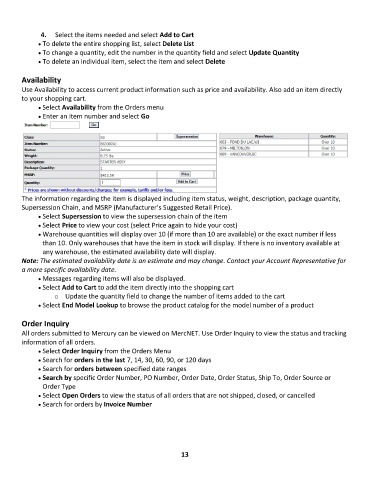
        Use Availability to access current product information such as price and availability. Also add an item directly
        to your shopping cart.
              • •   Select Availability from the Orders menu
              • •   Enter an item number and select Go


        The information regarding the item is displayed including item status, weight, description, package quantity,
        Supersession Chain, and MSRP (Manufacturer’s Suggested Retail Price).
              • •   Select Supersession to view the supersession chain of the item
              • •   Select Price to view your cost (select Price again to hide your cost)
              • •   Warehouse quantities will display over 10 (if more than 10 are available) or the exact number if less
               than 10. Only warehouses that have the item in stock will display. If there is no inventory available at
               any warehouse, the estimated availability date will display.
        Note: The estimated availability date is an estimate and may change. Contact your Account Representative for
        a more specific availability date.
              • •   Messages regarding items will also be displayed.
              • •   Select Add to Cart to add the item directly into the shopping cart
                   o  Update the quantity field to change the number of items added to the cart
              • •   Select End Model Lookup to browse the product catalog for the model number of a product

        Order Inquiry
        All orders submitted to Mercury can be viewed on MercNET. Use Order Inquiry to view the status and tracking
        information of all orders.
              • •   Select Order Inquiry from the Orders Menu
              • •   Search for orders in the last 7, 14, 30, 60, 90, or 120 days
              • •   Search for orders between specified date ranges
              • •   Search by specific Order Number, PO Number, Order Date, Order Status, Ship To, Order Source or
               Order Type
              • •   Select Open Orders to view the status of all orders that are not shipped, closed, or cancelled
              • •   Search for orders by Invoice Number


                                                             13

