


Page 10 - MercNET User's Guide
P. 10
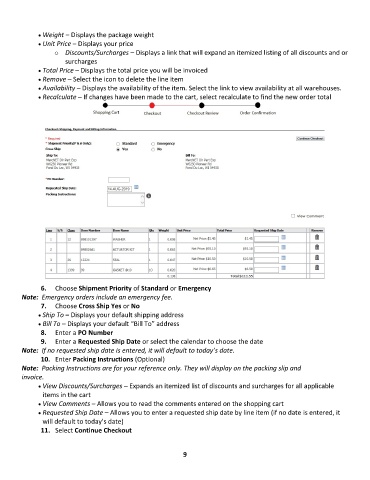
• •   Weight – Displays the package weight
              • •   Unit Price – Displays your price
                   o  Discounts/Surcharges – Displays a link that will expand an itemized listing of all discounts and or
                       surcharges
              • •   Total Price – Displays the total price you will be invoiced
              • •   Remove – Select the icon to delete the line item
              • •   Availability – Displays the availability of the item. Select the link to view availability at all warehouses.
              • •   Recalculate – If changes have been made to the cart, select recalculate to find the new order total


               6.  Choose Shipment Priority of Standard or Emergency
        Note:  Emergency orders include an emergency fee.
               7.  Choose Cross Ship Yes or No
              • •   Ship To – Displays your default shipping address
              • •   Bill To – Displays your default “Bill To” address
               8.  Enter a PO Number
               9.  Enter a Requested Ship Date or select the calendar to choose the date
        Note:  If no requested ship date is entered, it will default to today’s date.
               10.  Enter Packing Instructions (Optional)
        Note:  Packing Instructions are for your reference only. They will display on the packing slip and
        invoice.
              • •   View Discounts/Surcharges – Expands an itemized list of discounts and surcharges for all applicable
               items in the cart
              • •   View Comments – Allows you to read the comments entered on the shopping cart
              • •   Requested Ship Date – Allows you to enter a requested ship date by line item (if no date is entered, it
               will default to today’s date)
               11.  Select Continue Checkout


                                                              9

