


Page 15 - MercNET User's Guide
P. 15
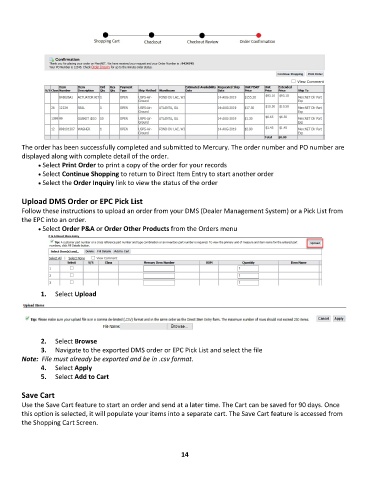
The order has been successfully completed and submitted to Mercury. The order number and PO number are
        displayed along with complete detail of the order.
              • •   Select Print Order to print a copy of the order for your records
              • •   Select Continue Shopping to return to Direct Item Entry to start another order
              • •   Select the Order Inquiry link to view the status of the order

        Upload DMS Order or EPC Pick List
        Follow these instructions to upload an order from your DMS (Dealer Management System) or a Pick List from
        the EPC into an order.
              • •   Select Order P&A or Order Other Products from the Orders menu


               1.  Select Upload


               2.  Select Browse
               3.  Navigate to the exported DMS order or EPC Pick List and select the file
        Note:  File must already be exported and be in .csv format.
               4.  Select Apply
               5.  Select Add to Cart

        Save Cart
        Use the Save Cart feature to start an order and send at a later time. The Cart can be saved for 90 days. Once
        this option is selected, it will populate your items into a separate cart. The Save Cart feature is accessed from
        the Shopping Cart Screen.


                                                             14

