


Page 12 - MercNET User's Guide
P. 12
Order Other Products
        Follow these instructions to enter serialized products and/or Parts and Accessories on an order. See Upload
        DMS Order or EPC Pick List (page 14) to upload orders from an inventory management program or to upload
        Mercury EPC pick lists into an order).
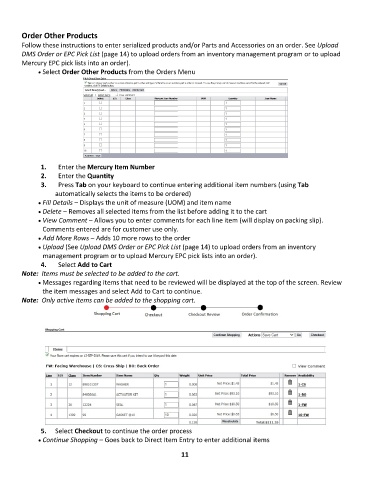
              • Select Order Other Products from the Orders Menu


               1.   Enter the Mercury Item Number
               2.   Enter the Quantity
               3.   Press Tab on your keyboard to continue entering additional item numbers (using Tab
                   automatically selects the items to be ordered)
              • •   Fill Details – Displays the unit of measure (UOM) and item name
              • •   Delete – Removes all selected items from the list before adding it to the cart
              • •   View Comment – Allows you to enter comments for each line item (will display on packing slip).
               Comments entered are for customer use only.
              • •   Add More Rows – Adds 10 more rows to the order
              • •   Upload (See Upload DMS Order or EPC Pick List (page 14) to upload orders from an inventory
               management program or to upload Mercury EPC pick lists into an order).
               4.   Select Add to Cart
        Note:  Items must be selected to be added to the cart.
              • •   Messages regarding items that need to be reviewed will be displayed at the top of the screen. Review
               the item messages and select Add to Cart to continue.
        Note:  Only active items can be added to the shopping cart.


               5.  Select Checkout to continue the order process
              • •   Continue Shopping – Goes back to Direct Item Entry to enter additional items

                                                             11

