


Page 11 - MercNET User's Guide
P. 11
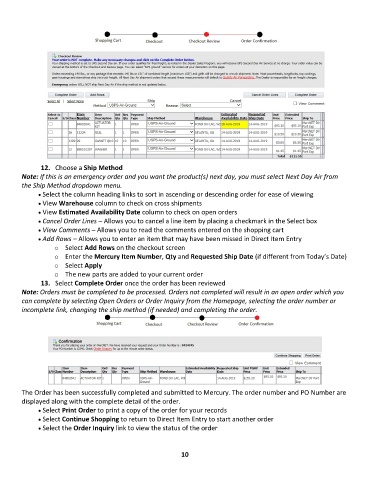
12.  Choose a Ship Method
        Note: If this is an emergency order and you want the product(s) next day, you must select Next Day Air from
        the Ship Method dropdown menu.
              • •   Select the column heading links to sort in ascending or descending order for ease of viewing
              • •   View Warehouse column to check on cross shipments
              • •   View Estimated Availability Date column to check on open orders
              • •   Cancel Order Lines – Allows you to cancel a line item by placing a checkmark in the Select box
              • •   View Comments – Allows you to read the comments entered on the shopping cart
              • •   Add Rows – Allows you to enter an item that may have been missed in Direct Item Entry
                   o  Select Add Rows on the checkout screen
                   o  Enter the Mercury Item Number, Qty and Requested Ship Date (if different from Today’s Date)
                   o  Select Apply
                   o  The new parts are added to your current order
               13.  Select Complete Order once the order has been reviewed
        Note: Orders must be completed to be processed. Orders not completed will result in an open order which you
        can complete by selecting Open Orders or Order Inquiry from the Homepage, selecting the order number or
        incomplete link, changing the ship method (if needed) and completing the order.


        The Order has been successfully completed and submitted to Mercury. The order number and PO Number are
        displayed along with the complete detail of the order.
              • •   Select Print Order to print a copy of the order for your records
              • •   Select Continue Shopping to return to Direct Item Entry to start another order
              • •   Select the Order Inquiry link to view the status of the order


                                                             10

