


Page 25 - Computing book 6
P. 25
Document Creation                                                                    Class 6


               Insert Page Border in a Document:

               A page border is a border that appears outside the margins on each page. Border art is a repeated
               small image that forms a border around the outside of the document margins.

               Page borders are primarily for decoration; you can use any style, colour, and line thickness you want.
               You can also apply graphical borders (or border art) that repeat a small image as a pattern.

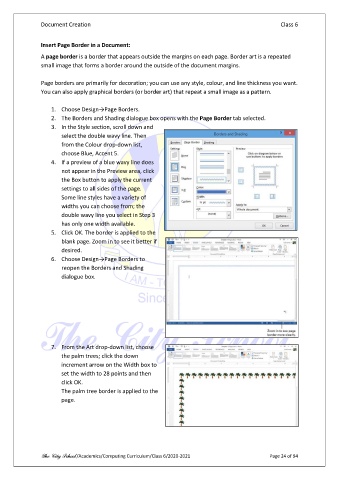
                   1.  Choose Design→Page Borders.
                   2.  The Borders and Shading dialogue box opens with the Page Border tab selected.
                   3.  In the Style section, scroll down and
                       select the double wavy line. Then
                       from the Colour drop-down list,
                       choose Blue, Accent 5.
                   4.  If a preview of a blue wavy line does
                       not appear in the Preview area, click
                       the Box button to apply the current
                       settings to all sides of the page.
                       Some line styles have a variety of
                       widths you can choose from; the
                       double wavy line you select in Step 3
                       has only one width available.
                   5.  Click OK. The border is applied to the
                       blank page. Zoom in to see it better if
                       desired.
                   6.  Choose Design→Page Borders to
                       reopen the Borders and Shading
                       dialogue box.


                   7.  From the Art drop-down list, choose
                       the palm trees; click the down
                       increment arrow on the Width box to
                       set the width to 28 points and then
                       click OK.
                       The palm tree border is applied to the
                       page.


               The City School /Academics/Computing Curriculum/Class 6/2020-2021                Page 24 of 94

