


Page 24 - Computing book 6
P. 24
Document Creation                                                                    Class 6


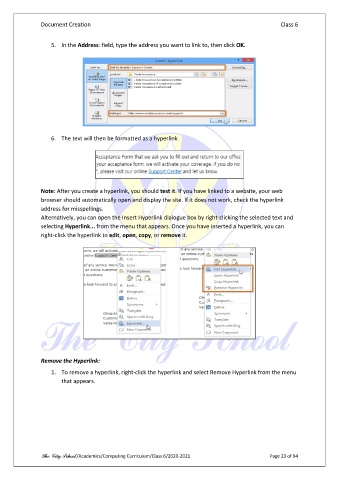
                   5.  In the Address: field, type the address you want to link to, then click OK.


                   6.  The text will then be formatted as a hyperlink.


               Note: After you create a hyperlink, you should test it. If you have linked to a website, your web
               browser should automatically open and display the site. If it does not work, check the hyperlink
               address for misspellings.
               Alternatively, you can open the Insert Hyperlink dialogue box by right-clicking the selected text and
               selecting Hyperlink... from the menu that appears. Once you have inserted a hyperlink, you can
               right-click the hyperlink to edit, open, copy, or remove it.


               Remove the Hyperlink:

                   1.  To remove a hyperlink, right-click the hyperlink and select Remove Hyperlink from the menu
                       that appears.


               The City School /Academics/Computing Curriculum/Class 6/2020-2021                Page 23 of 94

