


Page 28 - Computing book 6
P. 28
Document Creation                                                                    Class 6


               Crop a Picture:

               When you crop an image, a part of the picture is removed. Cropping may be helpful when a picture
               has a lot of content and you want to focus on only part of it.

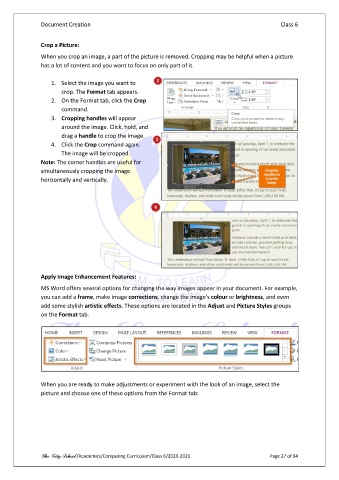
                   1.  Select the image you want to
                       crop. The Format tab appears.
                   2.  On the Format tab, click the Crop
                       command.
                   3.  Cropping handles will appear
                       around the image. Click, hold, and
                       drag a handle to crop the image.
                   4.  Click the Crop command again.
                       The image will be cropped.
               Note: The corner handles are useful for
               simultaneously cropping the image
               horizontally and vertically.


               Apply Image Enhancement Features:

               MS Word offers several options for changing the way images appear in your document. For example,
               you can add a frame, make image corrections, change the image's colour or brightness, and even
               add some stylish artistic effects. These options are located in the Adjust and Picture Styles groups
               on the Format tab.


               When you are ready to make adjustments or experiment with the look of an image, select the
               picture and choose one of these options from the Format tab:


               The City School /Academics/Computing Curriculum/Class 6/2020-2021                Page 27 of 94

