


Page 23 - Computing book 6
P. 23
Document Creation                                                                    Class 6


               MS Word has a variety of preset headers and footers you can use to enhance your document's
               design and layout.
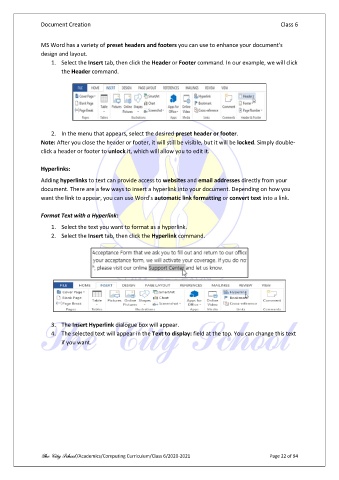
                   1.  Select the Insert tab, then click the Header or Footer command. In our example, we will click
                       the Header command.


                   2.  In the menu that appears, select the desired preset header or footer.
               Note: After you close the header or footer, it will still be visible, but it will be locked. Simply double-
               click a header or footer to unlock it, which will allow you to edit it.

               Hyperlinks:

               Adding hyperlinks to text can provide access to websites and email addresses directly from your
               document. There are a few ways to insert a hyperlink into your document. Depending on how you
               want the link to appear, you can use Word's automatic link formatting or convert text into a link.

               Format Text with a Hyperlink:
                   1.  Select the text you want to format as a hyperlink.
                   2.  Select the Insert tab, then click the Hyperlink command.


                   3.  The Insert Hyperlink dialogue box will appear.
                   4.  The selected text will appear in the Text to display: field at the top. You can change this text
                       if you want.


               The City School /Academics/Computing Curriculum/Class 6/2020-2021                Page 22 of 94

