


Page 34 - Computing book 6
P. 34
Document Creation                                                                    Class 6


               To Find Text:

               In our example, we have written an academic paper and will use the Find command to locate all
               references to a particular author's last name.

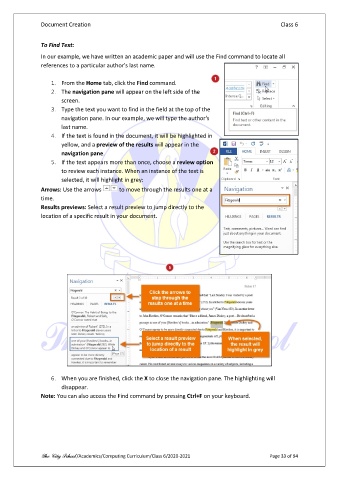
                   1.  From the Home tab, click the Find command.
                   2.  The navigation pane will appear on the left side of the
                       screen.
                   3.  Type the text you want to find in the field at the top of the
                       navigation pane. In our example, we will type the author's
                       last name.
                   4.  If the text is found in the document, it will be highlighted in
                       yellow, and a preview of the results will appear in the
                       navigation pane.
                   5.  If the text appears more than once, choose a review option
                       to review each instance. When an instance of the text is
                       selected, it will highlight in grey:
               Arrows: Use the arrows      to move through the results one at a
               time.
               Results previews: Select a result preview to jump directly to the
               location of a specific result in your document.


                   6.  When you are finished, click the X to close the navigation pane. The highlighting will
                       disappear.
               Note: You can also access the Find command by pressing Ctrl+F on your keyboard.


               The City School /Academics/Computing Curriculum/Class 6/2020-2021                Page 33 of 94

