


Page 34 - Computing Book 4
P. 34
Let’s Present                                                                        Class 4


               Action Buttons:

               Another tool you can use to connect to a webpage, file, email address, or slide is called an action
               button. Action buttons are built-in button shapes you can add to a presentation and set to link to
               another slide, play a sound, or perform a similar action. When someone clicks or moves over the
               button, the selected action will occur. Action buttons can do many of the same things as hyperlinks.

               You can insert action buttons on one slide at a time, or you can insert an action button that will show
               up on every slide. The second option can be useful if you want every slide to link back to a specific
               slide, like the title page or table of contents.

               Insert an Action Button:


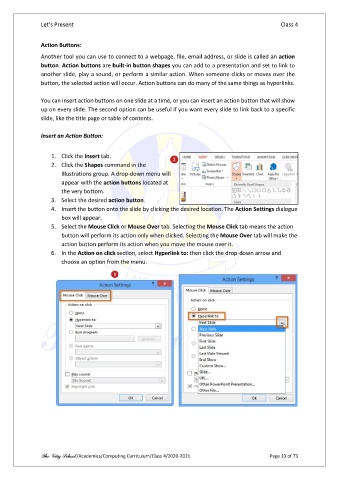
                   1.  Click the Insert tab.
                   2.  Click the Shapes command in the
                       Illustrations group. A drop-down menu will
                       appear with the action buttons located at
                       the very bottom.
                   3.  Select the desired action button.
                   4.  Insert the button onto the slide by clicking the desired location. The Action Settings dialogue
                       box will appear.
                   5.  Select the Mouse Click or Mouse Over tab. Selecting the Mouse Click tab means the action
                       button will perform its action only when clicked. Selecting the Mouse Over tab will make the
                       action button perform its action when you move the mouse over it.
                   6.  In the Action on click section, select Hyperlink to: then click the drop-down arrow and
                       choose an option from the menu.


               The City School /Academics/Computing Curriculum/Class 4/2020-2021                Page 33 of 73

